


Un’utilissima guida, che mi limito ad importare in toto, redatta da Tony di TheUnLockr per sincronizzare la musica di iTunes con il vostro smartphone Android tramite un PC Windows.
I. Before you begin.
1. These are instructions for Windows computers.
II. Download Google Music Manager
1. Go to Google Play Music in your web browser.
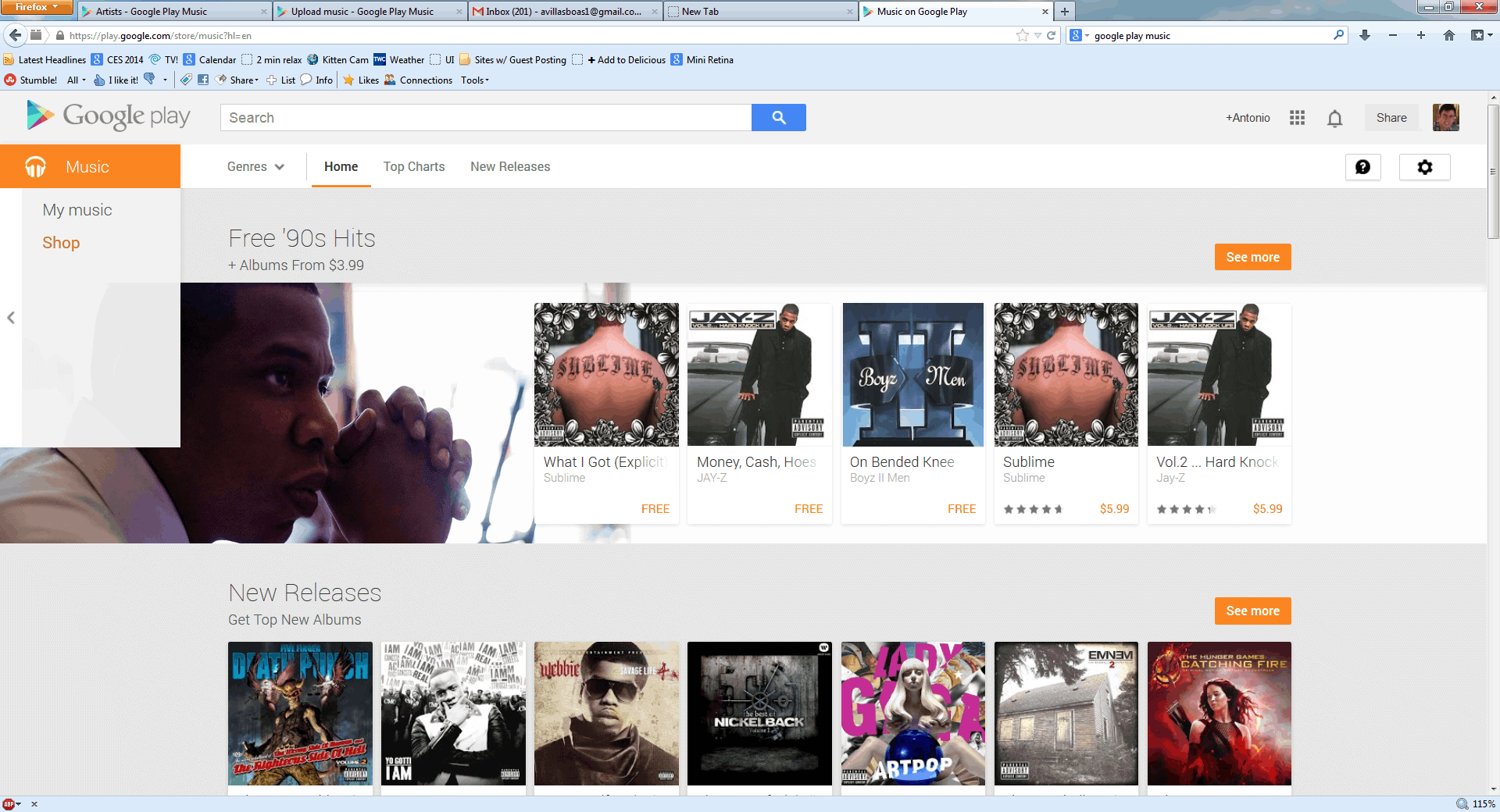
2. Click “My Music” on the top left.

3. Click “Upload Music” towards the top right.

4. Click “Download Music Manager.”

5. Click “Save File.”

6. Wait for Music Manager to download.
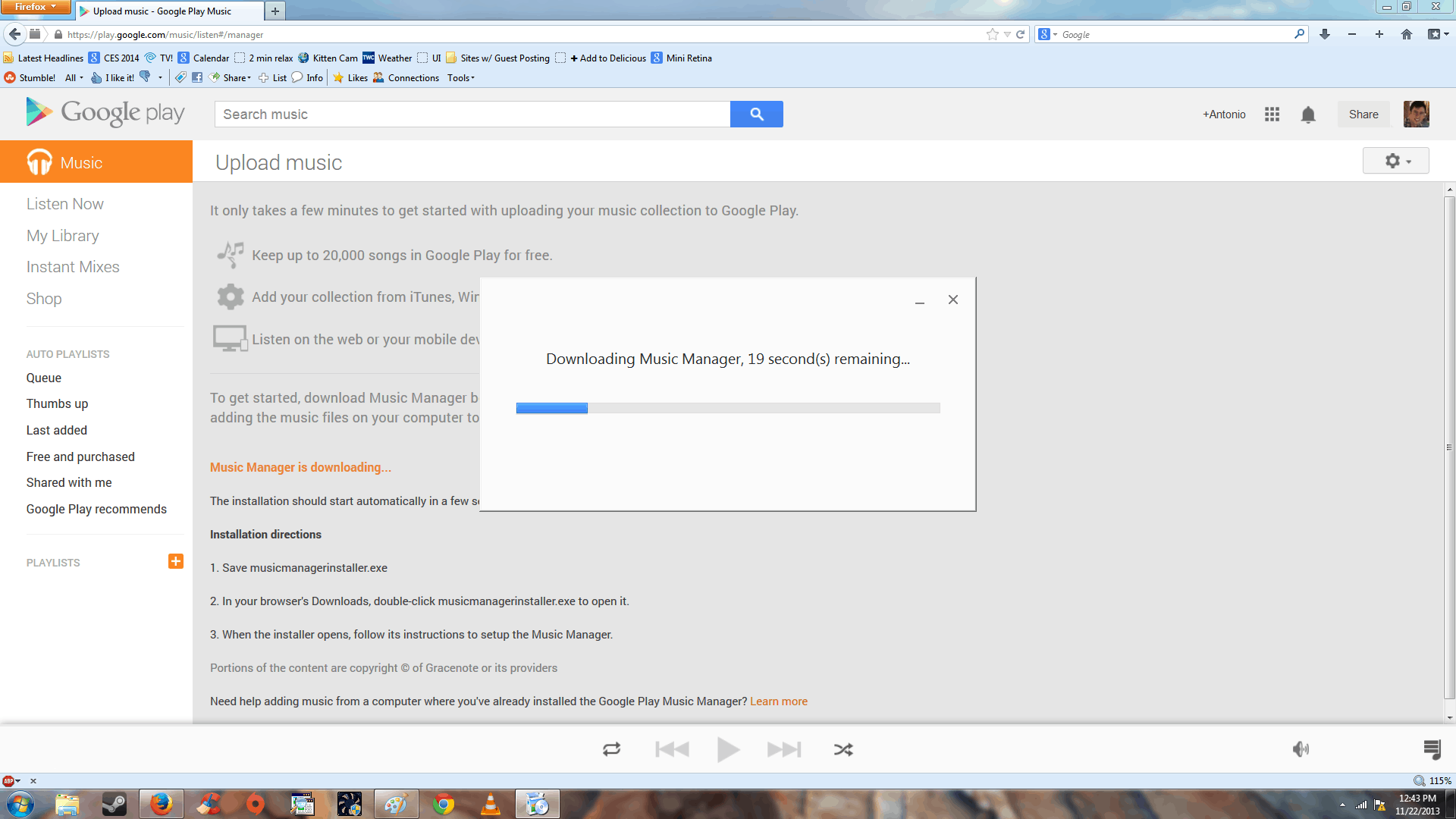
7. Once it’s finished downloading, open the Music Manager installation file you just downloaded.

8. If prompted, just click “Run.”

III. Upload your iTunes music to your Google Play music library.
1. Click “Next” on the Music Manager setup introduction.

2. Sign into your Google Account.
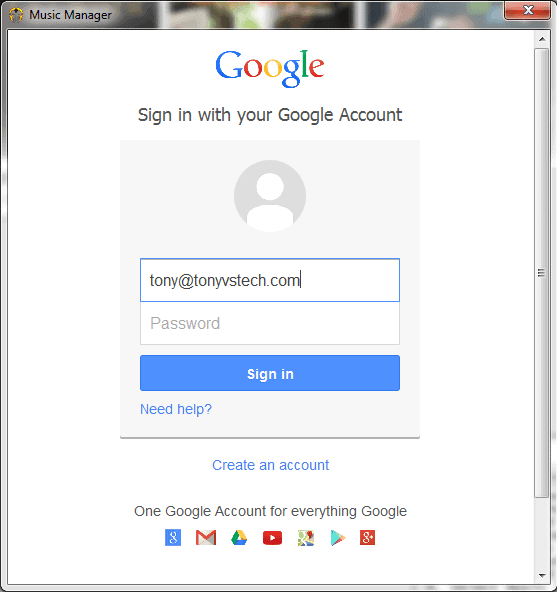
3. Select “Upload songs to Google Play,” then click “Next.”

4. Select “iTunes,” and click “Next”

5. Select “Upload all songs and playlists.”

6. You can choose whether or not songs you add to iTunes in the future will automatically upload to your Google Play Music library, up to you. (Probably “Yes.”)

7. Click “Next” on the tip window.

8. Click “Close” to simply finish setup, your iTunes music is being uploaded to your Google Play music library. Click on “Go to music player,” if you want to open your Google Play music library where you’ll find your iTunes music begin to appear onto your Google Play music library. Note that your music is in Google’s cloud and can be streamed if your online. If you want to download artists or albums onto your computer, scroll down to the Optional section below to find out how.

IV. Find your iTunes music on your Android device.
1. Find and open the “Play Music” app in your phone’s app drawer.

2. Find your iTunes music appearing in your Library. Note that all the music you see is in the proverbial cloud, and you can download artists or albums onto your phone if you don’t want to rely on a data or wi-fi connection to listen to your music.
V. Download Music From Google Play Onto Your Android Device (Optional)
1. Find and open the Play Music app in your app drawer.
2. Find the album or artist tile that you want to keep on your phone.

3. Tap over the 3 small, vertically arranged dots found on the right side of the album or artist tile.

4. Tap “Keep on device,” and your music will download onto your phone. Tap on “Listen Now” towards the top right and select “This device” to browse only through downloaded music.

5. Downloaded music will have a small orange pin symbol on the bottom right of the tile.

Many of us managed our digital music library (legitimate or not) with iTunes first. There really is no need to start a new music library on Google Play, which is why Google’s made it so easy to integrate your iTunes music with your Android devices.